


Download VideoScenePlayer – Free Multi‑Video, Glass‑Mode, Multi‑Monitor Player
Overview
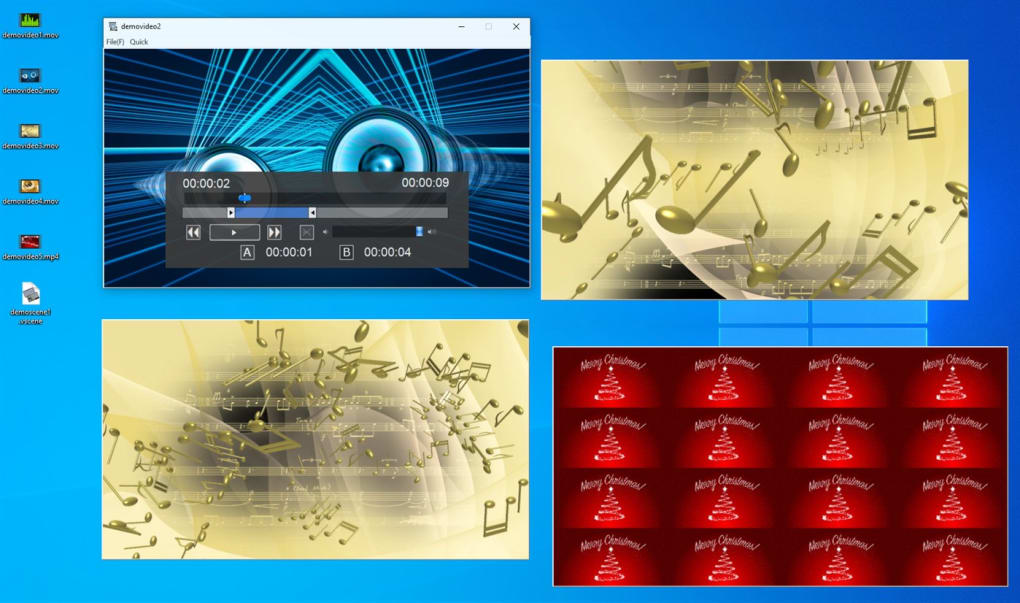
VideoScenePlayer is a lightweight, free video player designed for users who need to watch several videos at the same time without the overhead of a full‑featured media suite. Developed by Noriyuki Higa, the program focuses on speed, simplicity, and a handful of clever tricks that set it apart from more complex rivals such as VLC or MPC‑H. The core philosophy behind VideoScenePlayer is “do one thing well”: it opens multiple video windows, supports the most common video containers (MP4, AVI, MKV, MOV, WMV, etc.), and works seamlessly across single‑ or multi‑monitor setups.
While you won’t find deep codec tweaking, audio equalisation, or subtitle rendering options, the application shines in scenarios where you need a quick preview, a background visual for presentations, or a transparent overlay while you work on another program. Its signature “Glass Mode” lets you adjust a video’s opacity, turning the playback window into a semi‑transparent layer that can sit atop other applications. This makes it especially handy for designers, streamers, or anyone who wants a visual cue without sacrificing screen real‑estate.
Because the software is free, portable, and requires no registration, it’s an attractive choice for students, freelancers, and power users alike. The trade‑off is the lack of advanced settings, but for the target audience—people who value speed, ease of use, and multi‑window capability—VideoScenePlayer delivers exactly what it promises.
Core Features & Unique Capabilities
- Simultaneous playback of multiple video files in separate windows.
- Support for the most popular video formats: MP4, AVI, MKV, MOV, WMV, FLV, and more.
- Multi‑monitor awareness – each video can be dragged to a different screen.
- “Glass Mode” transparency slider allowing opacity from 0 % to 100 %.
- Essential playback controls: play, pause, stop, rewind, fast‑forward.
- Simple volume, position, and window‑size adjustments.
- Portable executable – no installation required for Windows.
- Auto‑detects default system codecs for smooth decoding.
Beyond the list, VideoScenePlayer’s design prioritises a clean user interface. When you launch a file, a minimal window appears with the standard play/pause button, a timeline, and a volume knob. Drag‑and‑drop support lets you add additional files on the fly, instantly spawning new windows that inherit the same controls.
The Glass Mode is accessed via a small slider on the right‑hand side of each window; moving the slider makes the video increasingly see‑through, which is perfect for overlaying a tutorial video while you edit a document. Because the player does not attempt to decode every possible codec internally, it relies on the operating system’s built‑in decoders, keeping the binary size under 2 MB and ensuring fast start‑up times. While power users may miss advanced subtitle synchronisation or hardware‑accelerated rendering, the simplicity of VideoScenePlayer translates to almost zero lag, even on older hardware.
In short, the feature set is intentionally narrow, but each feature works reliably, making the player a solid utility for everyday multi‑video tasks.
Installation, Usage Instructions & Compatibility
VideoScenePlayer is distributed as a single portable executable for Windows (both 32‑bit and 64‑bit). To get started, download the VideoScenePlayer.exe file from the official site, then place it in any folder of your choice—no installer, no registry entries, and no admin rights required. Double‑click the file to launch the main window. The first time you open the program, you’ll see a brief “Welcome” tooltip that explains how to add videos: simply drag a file onto the window or use the File → Open menu. Each additional video you open spawns its own window, which you can resize, move to another monitor, or set to Glass Mode independently.
For users who prefer a more traditional install, a small installer version is also available. Running the installer copies the executable to C:\Program Files\VideoScenePlayer and adds a Start‑Menu shortcut. After installation, you can associate common video extensions (e.g., .mp4, .avi) with VideoScenePlayer so that double‑clicking a file opens it directly in the player.
The application is built for Windows 7, 8, 10, and 11. Although the developer has not released native macOS, Android, or iOS builds, the program runs flawlessly on any modern Windows PC, including laptops, desktops, and virtual machines. Because it relies on the OS’s native codecs, you’ll experience smooth playback on machines with standard DirectShow or Media Foundation support. If a particular format fails to play, installing a codec pack such as K-Lite can resolve the issue. Overall, the installation process is intentionally frictionless, allowing you to start watching multiple videos within seconds of downloading the file.
Pros, Cons, FAQ & Final Verdict
Pros
- Free and portable – no registration or hidden fees.
- Instant multi‑video playback across multiple monitors.
- Unique Glass Mode for transparent video overlays.
- Very lightweight; launches in under a second.
- Simple, uncluttered interface ideal for quick tasks.
Cons
- Lacks advanced audio, subtitle, and codec configuration.
- No hardware‑accelerated decoding; may struggle with 4K UHD on older PCs.
- Only available for Windows; no native macOS, Android, or iOS versions.
- No playlist management or media library features.
- Glass Mode can be disorienting if used in fullscreen.
Frequently Asked Questions
Can I use VideoScenePlayer on a Mac?
Currently VideoScenePlayer is released only for Windows. macOS users can run it through virtualization software such as Parallels or Wine, but native support is not available.
Does the player support subtitles?
Subtitle support is minimal. The player will display embedded subtitles in supported containers, but there is no dedicated subtitle styling or external subtitle file loading.
Is Glass Mode safe for eye health?
Glass Mode only adjusts opacity; it does not emit additional light. However, prolonged use of transparent overlays can cause visual fatigue, so we recommend using it intermittently.
Can I open more than five videos at once?
Yes. The player has no hard limit on the number of simultaneous windows, though performance will depend on your PC’s CPU, RAM, and GPU capabilities.
Is there a way to set a default opacity for Glass Mode?
Unfortunately the current version does not remember opacity settings between sessions. You must adjust the slider each time you open a video.
Conclusion & Call to Action
VideoScenePlayer fills a niche that many heavyweight media players overlook: the ability to run several video streams side‑by‑side with a simple, distraction‑free interface. If you need a free, portable tool for monitoring security feeds, reviewing multi‑camera footage, or just keeping a tutorial video visible while you work, this app delivers exactly that. The trade‑off is the absence of deep customisation, but for its target audience—students, designers, and casual users—the minimalism is a virtue rather than a flaw. Ready to try it? USD 0.00 – Download VideoScenePlayer now and experience multi‑window playback without the bloat.







